Core Tools
Patient Files
Patient Files is the centre of Markoste. Every patient you see has a record here that holds their details, uploaded documents, saved reports and follow-up tasks.
Scribe, PharmCal and the modules all link back to a patient record, so Patient Files is where you find someone, open their history, and jump into a new consultation.
The flow at a glance
How Patient Files is laid out
Patient Files has two levels:
- The patient list – search and browse everyone in your organisation, then open a record.
- The patient record – a full-screen view with tabs across the top for demographics, consults, documents and more.
Click a patient from the list to open their record. Use Start Consult in the header to open Scribe for that patient straight away.
Good to know
Patients are scoped to your organisation only. You will never see another pharmacy's records.Step 1
Find a patient on the list
Search or browse your patient list
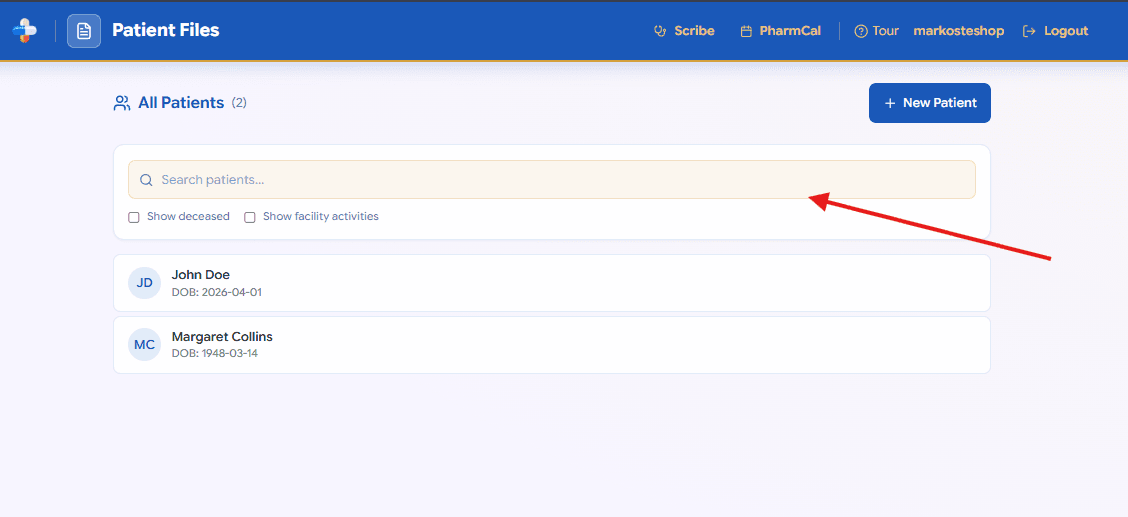
Open Patient Files from the main navigation. You will see all patients in your organisation listed alphabetically.
Type in the Search patients box to filter by name. Use Show deceased or Show facility activities if you need those records visible. Click a patient card to open their full record.
Step 2
Add a new patient
Create a patient from the list page
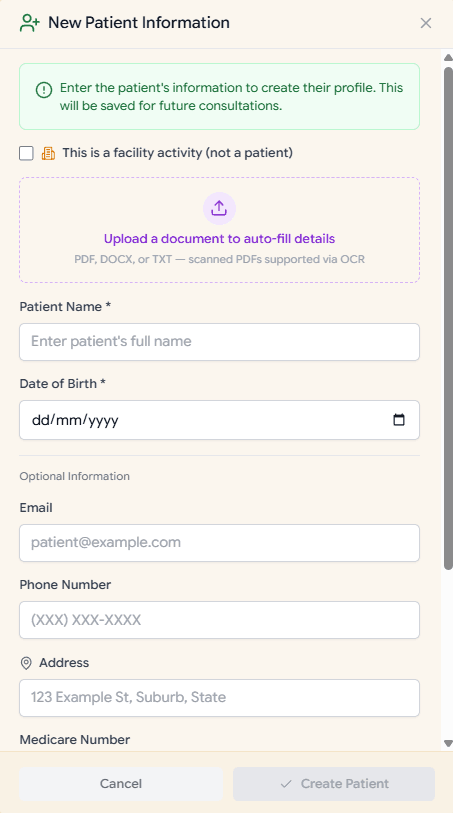
Click New Patient on the list page. Enter the patient's name and date of birth at minimum, then add optional contact and Medicare details.
You can upload a referral or other document to auto-fill demographics (PDF, Word or text). Once saved, the patient appears in your list and is ready for Scribe, documents and follow-ups.
Step 3
The patient record tabs
Navigate the tabs across the top
When you open a patient, a row of tabs runs across the top of the record. Each tab focuses on one area of the patient's file:
- Demographics – name, date of birth, contact details, Medicare number, GP and address. Edit these any time.
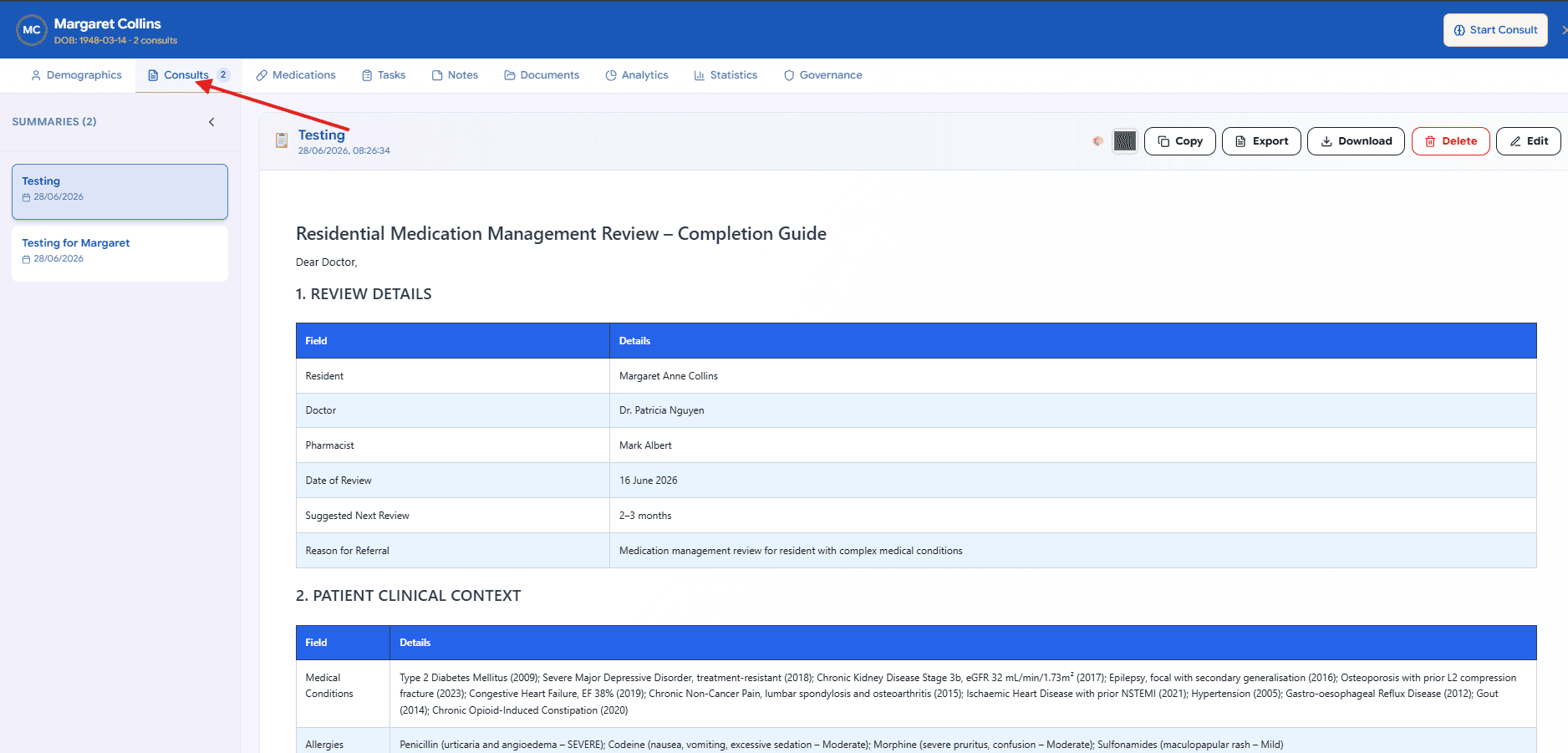
- Consults – every report saved from Scribe (and other generated reports). The badge shows how many consults are on file. Select one from the sidebar to read, copy, export or edit it.
- Medications – medication classes extracted from the patient's documents and reports, ready for review and confirmation.
- Tasks – PharmCal follow-up tasks linked to this patient.
- Notes – standalone clinical notes plus any notes attached to saved reports. Jump from a note to its consult when needed.
- Documents – referrals, discharge summaries, medication lists and other uploaded files. Scribe reads these during consultations.
- Analytics – charts showing how tags on this patient's reports break down over time.
- Statistics – a table of tag counts and percentages for this patient's saved reports.
- Governance – residential and aged-care register information when your plan includes those modules.

Tip
Tags you add when saving a report in Scribe (for example “HMR” or “follow-up”) feed into the Analytics and Statistics tabs for that patient.Step 4
Documents tab
Upload and manage patient documents
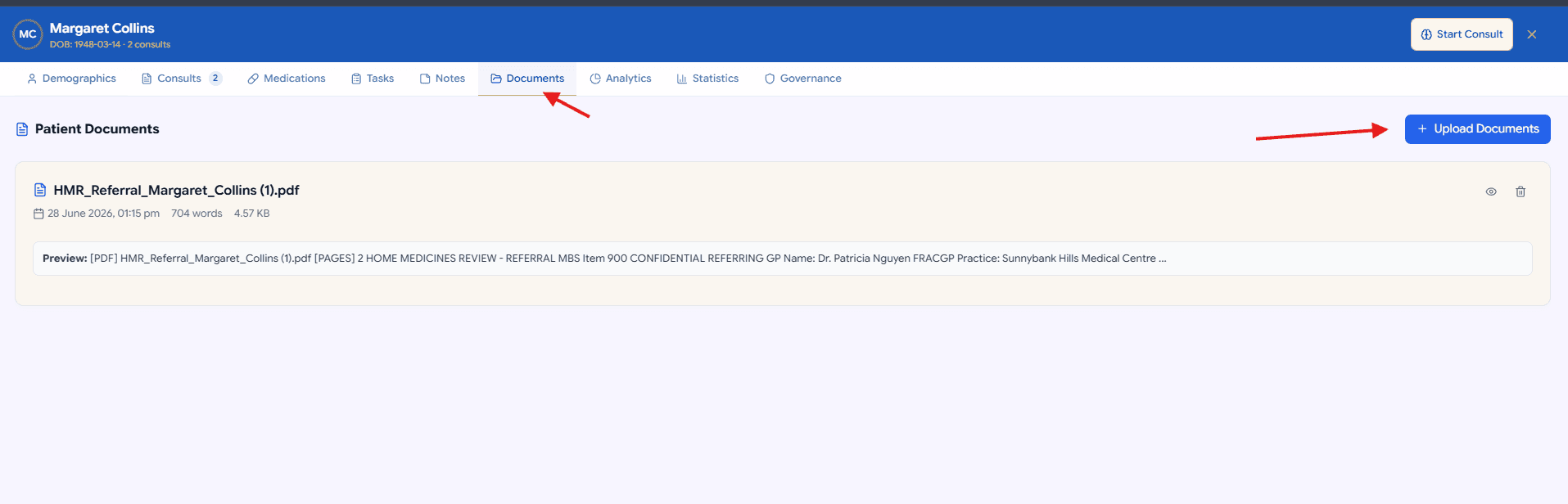
Open the Documents tab to see every file attached to this patient. Click Upload Documents to add PDFs, Word files or text.
Each document shows when it was uploaded, its size and a text preview. Use the view and delete icons to open or remove a file. Documents uploaded here are available in Scribe for medicine extraction and reference during the consult.
Step 5
Consults tab
Reopen past reports and continue your work
The Consults tab lists every saved report for this patient in the left sidebar, newest first. Click a summary to open it in the main panel.
From here you can Copy, Export, Download, Edit or Delete a report. Unsaved Scribe drafts also appear here so you can recover work in progress.
Use Start Consult in the header when you are ready to write a new report for this patient in Scribe.