Core Tools
Scribe
Scribe is where most of your day begins. You record or upload a patient consultation, and Scribe writes a tidy clinical report for you. From the same screen you can check medicines for interactions, look up drug information, generate Markoste+ flags for the completed report, then export or save the finished report.
The steps below follow the natural order of a consultation: select or create a patient, choose how you want the report written, add supporting documents, capture the consult, check medicines with MIMS while you record, generate the report, then export and save.
Video walkthrough
Watch: medication review report in Scribe
This short tutorial walks through the full Scribe workflow for generating a medication review report – from choosing the format and adding documents through to reviewing and saving the finished report.
The flow at a glance
How Scribe works
Everything in Scribe is laid out as tabs across the top of the screen. You will typically: select or create a patient, pick a format and add documents on the Scribe tab, start recording, then switch to Interactions and Dose to review medicines with MIMS while the consult is still being captured. After you process the audio, use Markoste+ (on eligible plans), export, and save to the patient's file.
Good to know
Every consultation must be linked to a patient record before you start. The report, documents and follow-ups all attach to that patient.Step 1
Select or create a patient
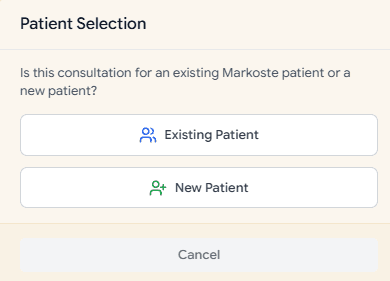
When you open Scribe, Markoste asks whether this consultation is for an existing patient or a new one. Everything you do in the session attaches to that patient record.
Choose existing or new patient
Click Existing Patient to search your patient list and select someone you have seen before. Click New Patient to create a fresh record for someone not yet in Markoste.
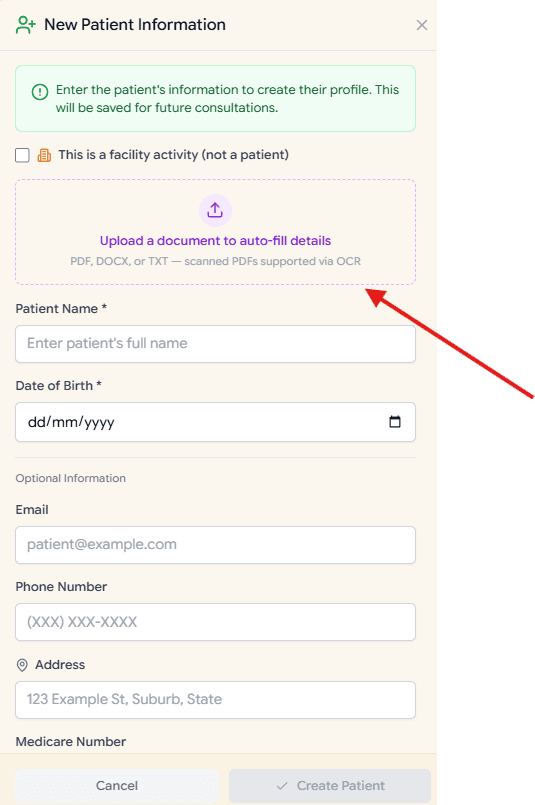
Create a new patient (if needed)
For a new patient, enter their name, date of birth and any other details you have. You can also upload a document here – for example a GP referral or medication list – so Scribe can read medicines and context before you start the consult.
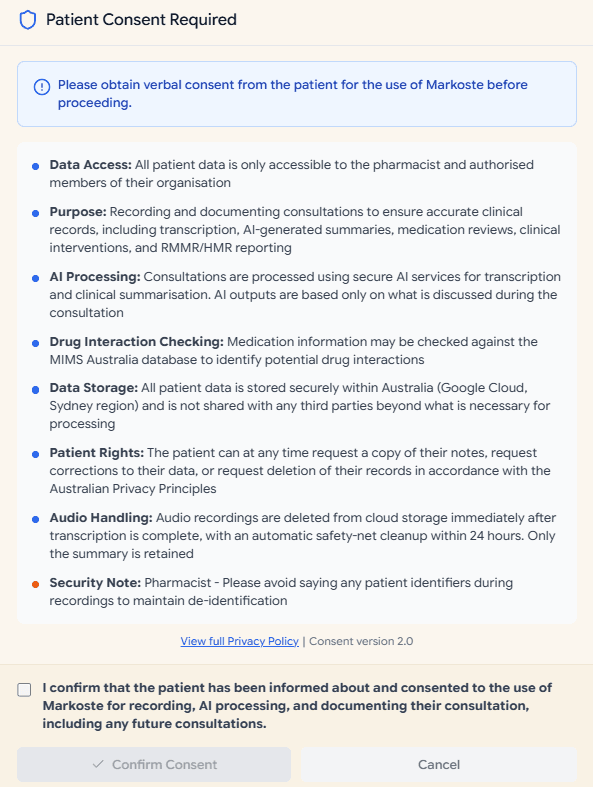
Confirm patient consent
Before you record or process a consultation, Markoste shows a Patient Consent Required window. Confirm the patient has been informed and consented to recording, AI processing and documentation in Markoste, then click Confirm Consent.
Tip
For an existing patient, you skip the creation form and go straight to selecting them from your list. Consent is still required before you record.Step 2
Choose your format
Pick the style of note you want
Before you generate a note, choose a format. This tells Scribe how to lay the note out. Common choices include:
- Concise – short paragraphs with clear headings.
- Bullet points – a quick scannable list.
- SOAP note – Subjective, Objective, Assessment, Plan.
- Medication review – a detailed review with medication tables.
You can preview each style before choosing, and change it later and regenerate if you change your mind.
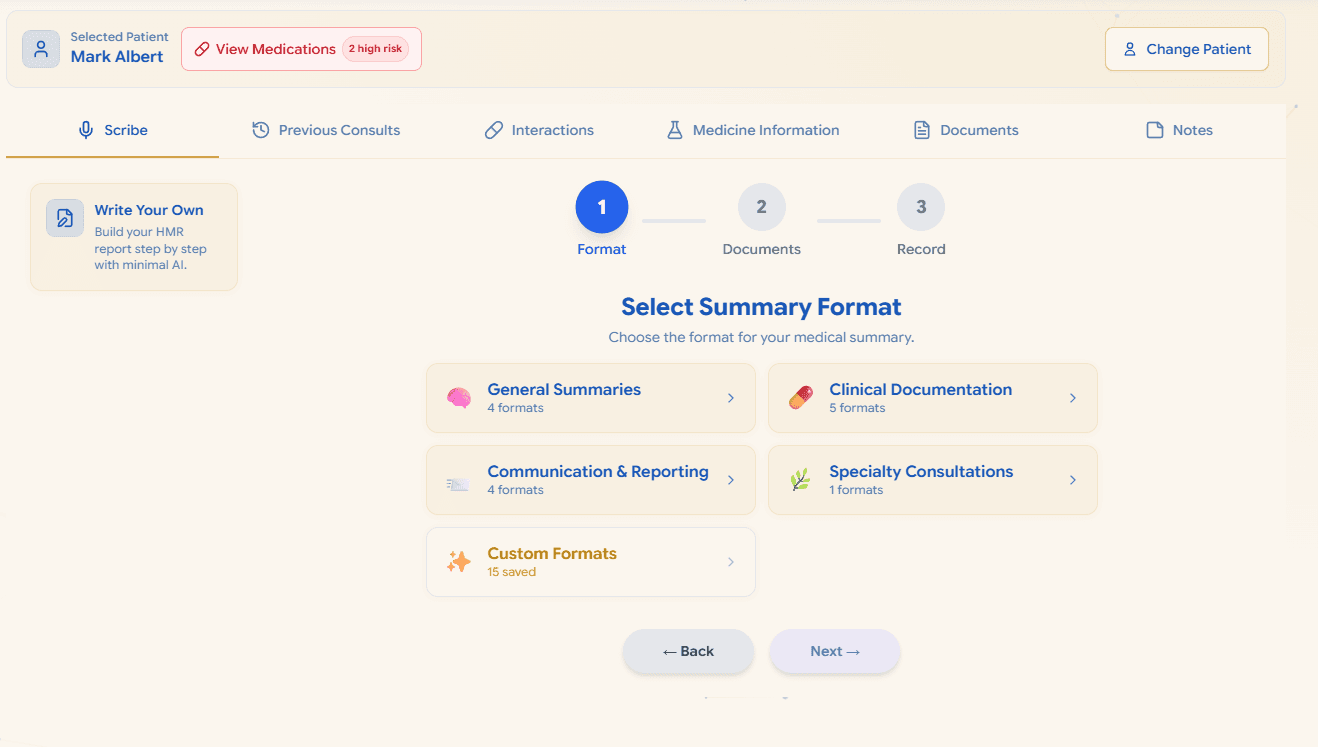
Tip
Choose the format that best matches this report. You can change the format before processing if this consultation needs a different layout.Step 3
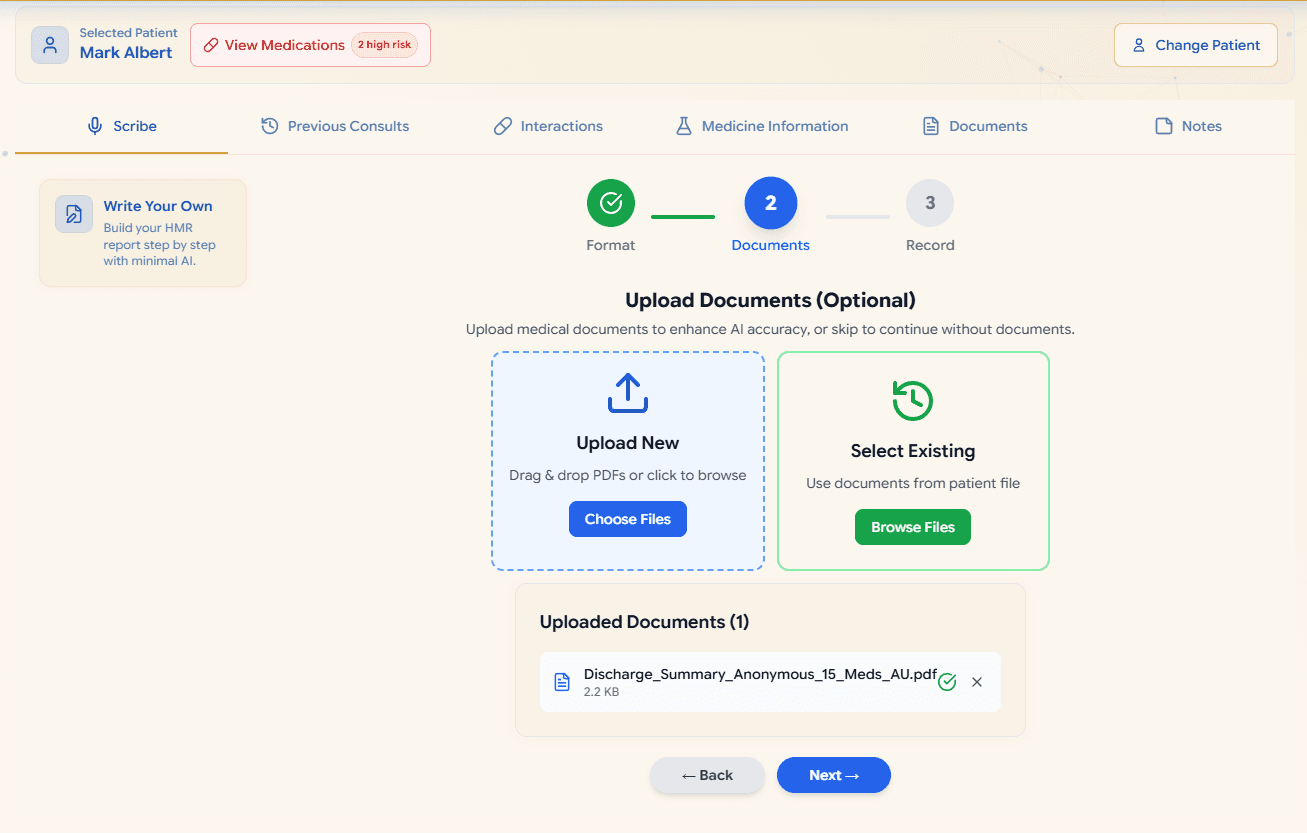
Add patient documents
Bring in referrals, discharge summaries and med lists
Use the New or Existing Document area to upload or select supporting files such as a GP referral, hospital discharge summary or medication list. Add these before you record or upload audio so Scribe can read the medicines and context upfront.
Scribe reads the text so it can be referenced during the consult, used to find medicines, and saved against the patient for next time.
Step 4
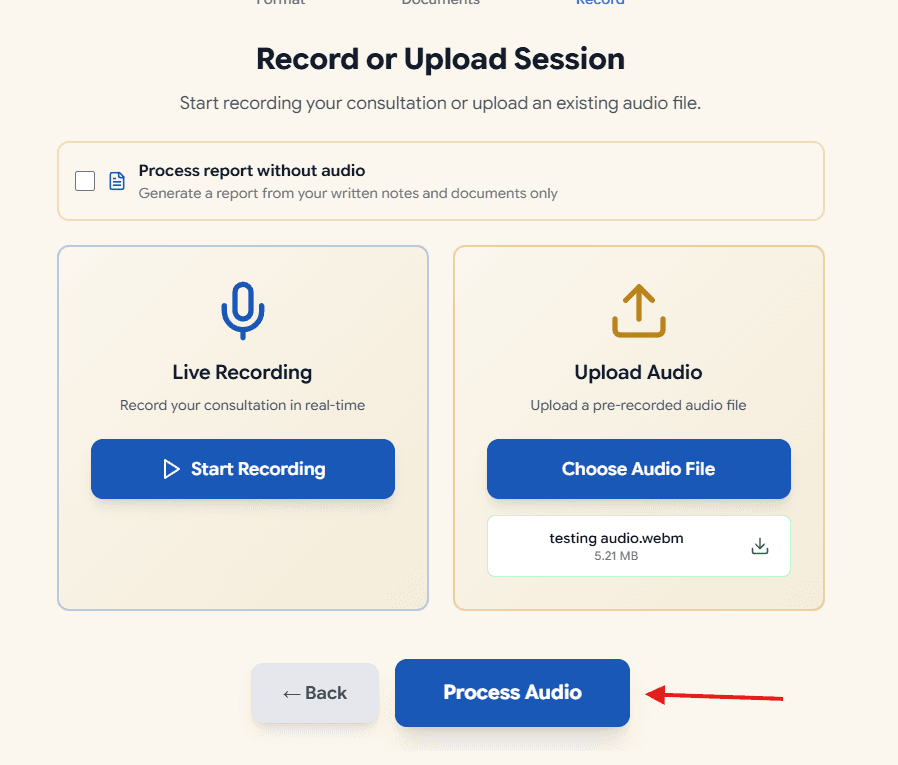
Record or upload audio
Capture the consultation
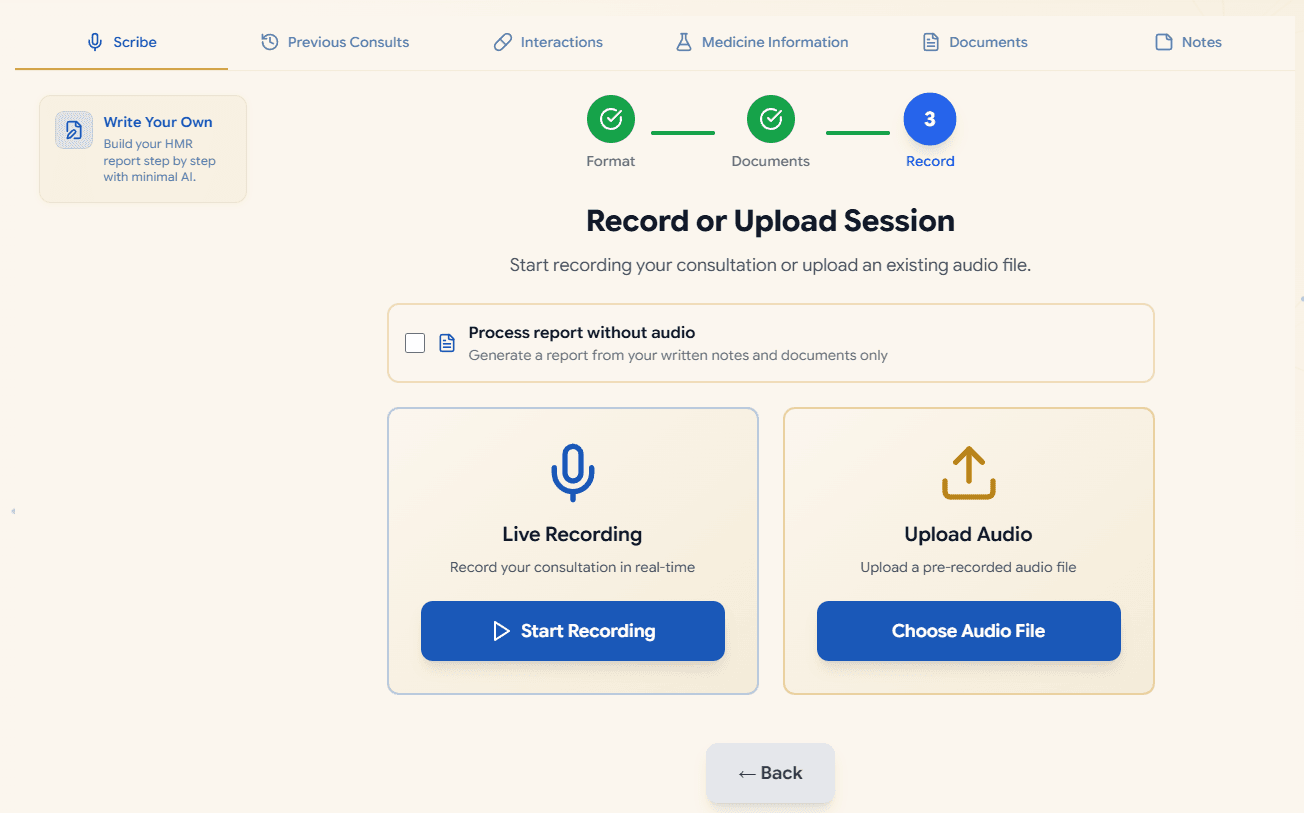
You have two ways to get the consultation into Scribe:
- Record live – press record at the start of the consult and stop at the end. A timer shows it is working.
- Upload a file – drag and drop an audio file you recorded earlier, or browse to select it.
You can also skip audio, type the relevant information into Scribe, and then process it into a report.
Good to know
Always confirm the patient has consented to being recorded before you start. Recordings are processed securely.Step 5
Check drug interactions (while recording)
Run a MIMS interaction check during the consult
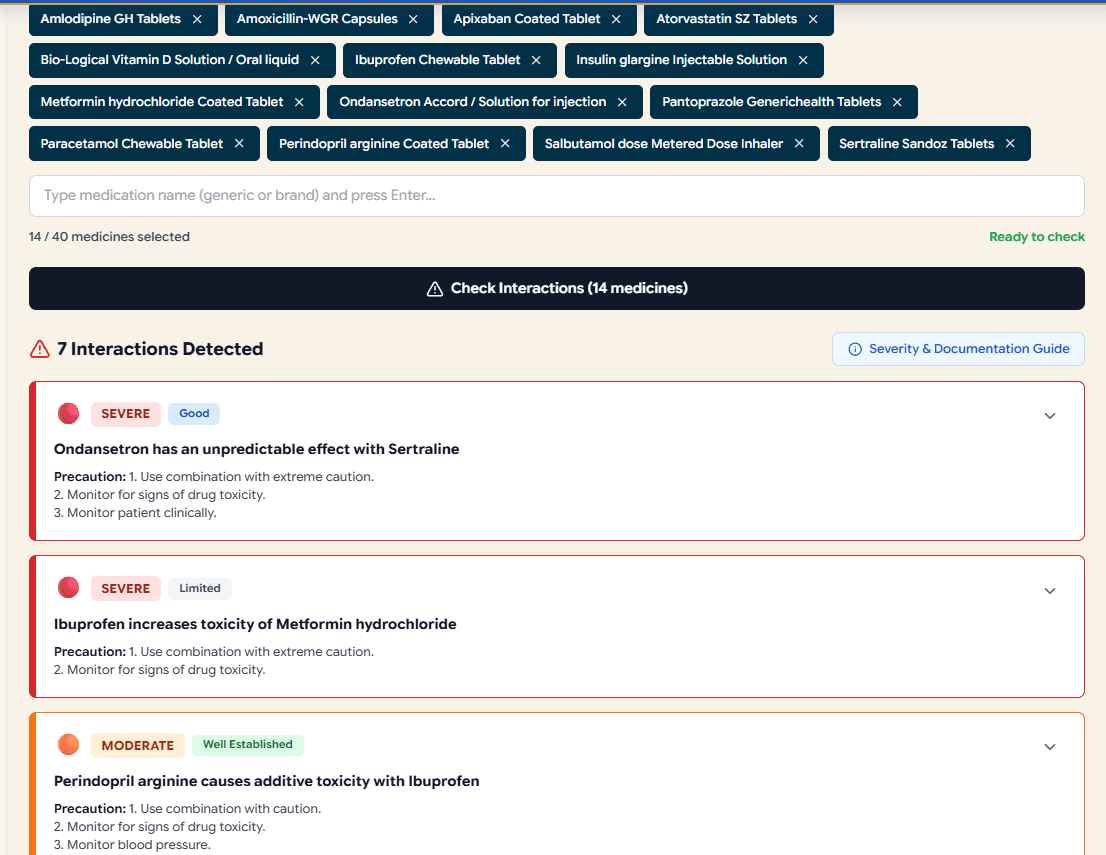
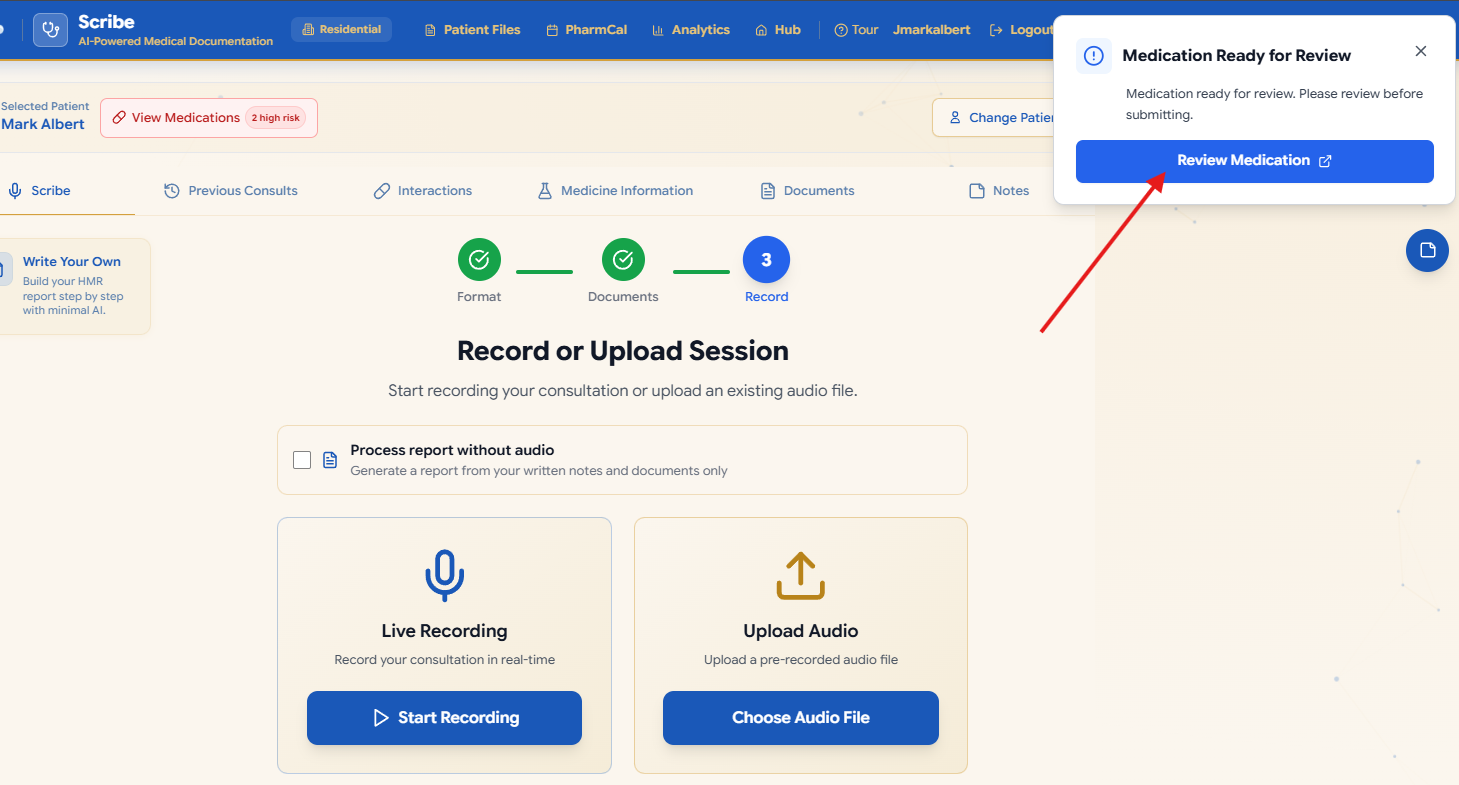
Once documents are uploaded, Markoste loads the medicine list and runs a MIMS interaction check. You can open the Interactions tab while recording is still running – you do not need to stop the consult.
Review the flagged interactions, then say aloud which ones you want discussed in the report. Markoste picks up what you say and includes that discussion when you process the audio.
Good to know
MIMS interaction checking during Scribe is available for paid tier users only.Step 6
Look up product information (while recording)
Review MIMS product information during the consult
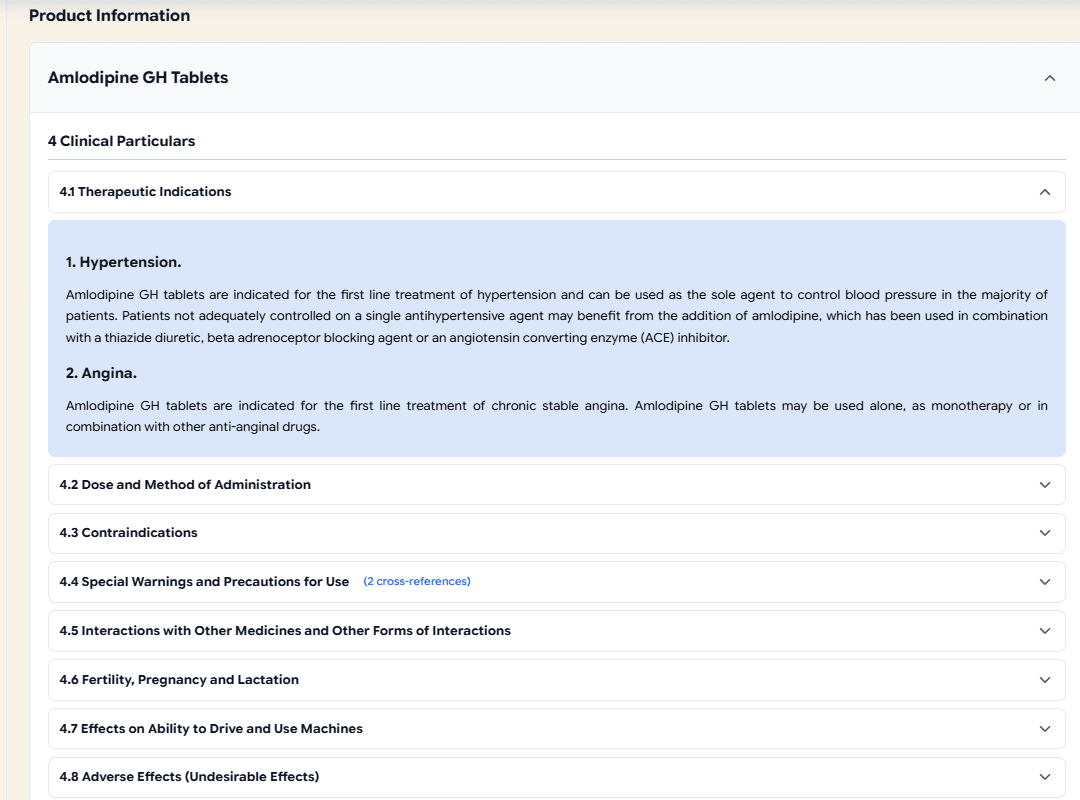
The Dose tab shows full MIMS Product Information for the medicines on your list – dosing, indications, adverse effects and key pharmacology. Open it while you are still recording.
Read what you need, then say aloud the relevant product information you want in the report – for example adverse effects, dosing points or counselling notes. Markoste includes what you discuss when the report is generated.
Because it shares the medicine list with the Interactions tab, anything you add in one appears in the other.
Step 7
Generate the report
Process the audio into a finished report
Once you have selected the format, uploaded or selected the patient documents, checked MIMS during the consult, and finished recording (or uploaded a saved audio file, or typed information without audio), click Process Audio.
Markoste produces the report in your chosen format. The report is fully editable, so you can fix wording, add detail, or remove anything not needed before saving.
Step 8
Run Markoste+ analysis
Review flags after the report is produced
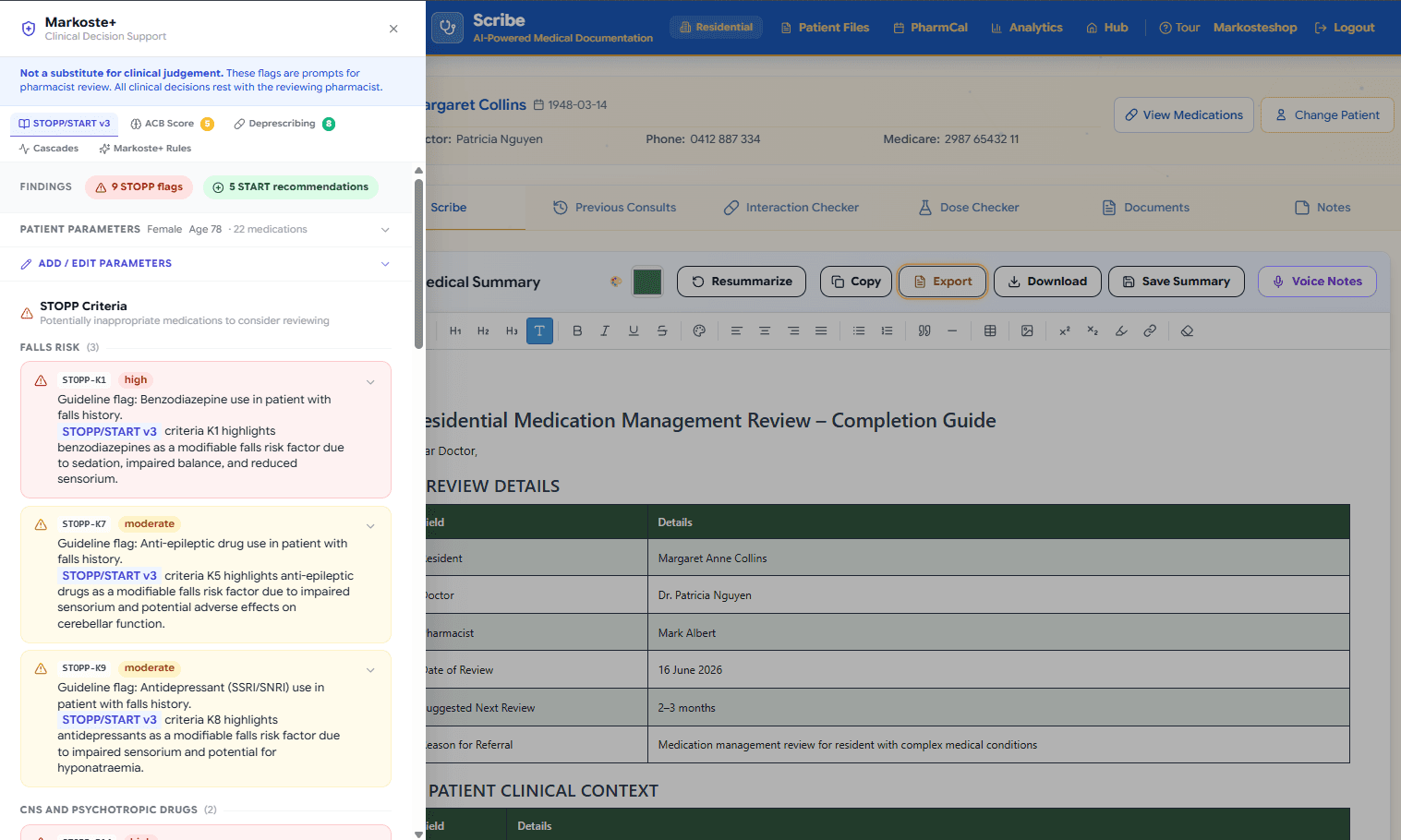
On eligible plans, Markoste+ is generated only after the report is produced. It reviews the report and medicine list, flags potentially inappropriate prescribing using STOPP/START rules, calculates the anticholinergic burden (ACB) score, and links to deprescribing guides.
These are prompts for your review, not instructions – every clinical decision stays with you. There is a dedicated page for this under Markoste+ Rules in the menu.
Step 9
Export your report
Download, copy, or save as PDF or Word
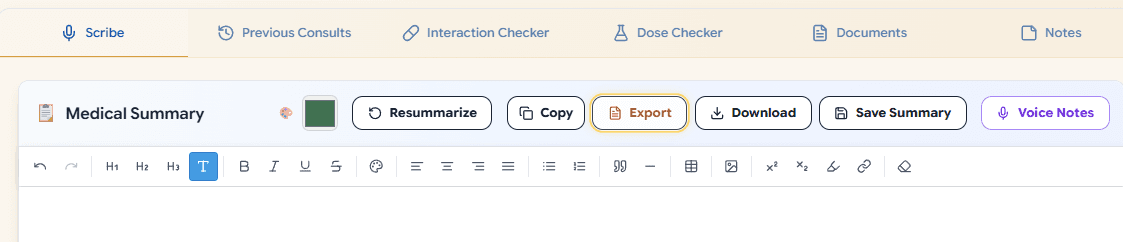
When the report is ready, use the Export button. You can:
- Copy the report to your clipboard to paste into another system.
- Download as PDF for a print-ready document.
- Download as Word if you need to edit it further outside Markoste.
Step 10
Save the report
Save the report to the patient's file
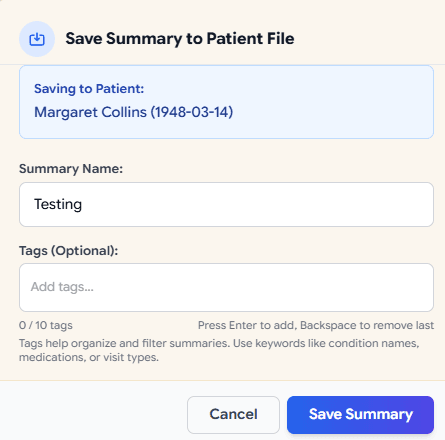
Click Save to store the report against the patient. A short window lets you give the report a name and add tags (for example “HMR” or “follow-up”) so you can find it later from Patient Files.
Saved reports appear in the patient's consultation history, ready to reopen any time.
Step 11
HMR and RMMR follow-ups
After you save an HMR or RMMR report, Markoste asks whether this patient needs a clinical follow-up. That is separate from a generic calendar task. Watch the walkthrough, then use the Follow-ups guide for the full inbox and GP letter steps.
Schedule the follow-up from the report
After calendar and PPA prompts (if they appear), a window asks Schedule an HMR follow-up? or Schedule an RMMR follow-up? Recommendations are pulled from the report. Edit, add or delete rows, then click Save follow-up, or Not now if it is not needed.
Finish later from Hub Follow-ups
Open Follow-ups on the left of Hub. Filter by suburb while you are in that town, click the patient, walk through the recommendations, then download PDF or Word for the GP.
Tip
You can also open the same follow-up from the Follow-ups tab on Scribe or Patient Files (after Notes).Step 12
PPA claiming after save
Saving an eligible HMR report can also open claiming steps. These are for the initial HMR service, not the follow-up letter.
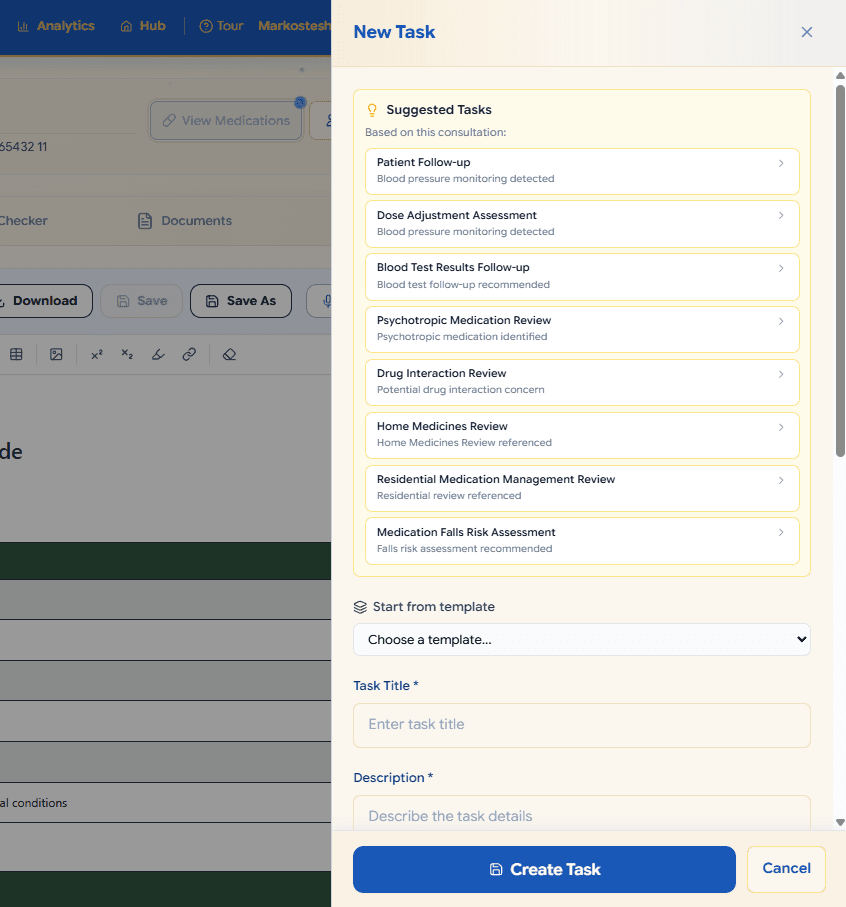
PharmCal task prompt
Markoste can create a PharmCal task linked to this patient and report so the next piece of work is already in your calendar.
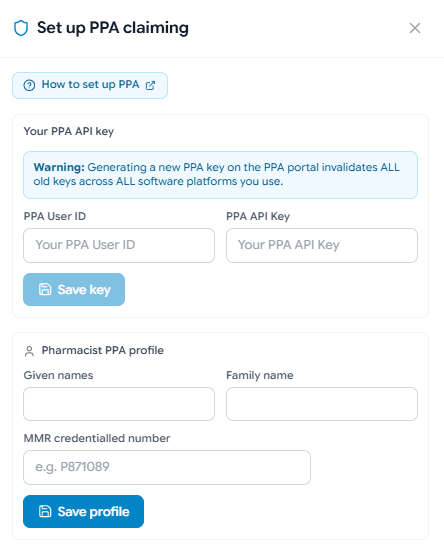
Set up PPA claiming (first time only)
The first time you save an eligible HMR report, Markoste asks whether you want to set up PPA claiming. Enter your PPA User ID, API key and pharmacist profile once, then you can submit claims straight from Scribe after each report.
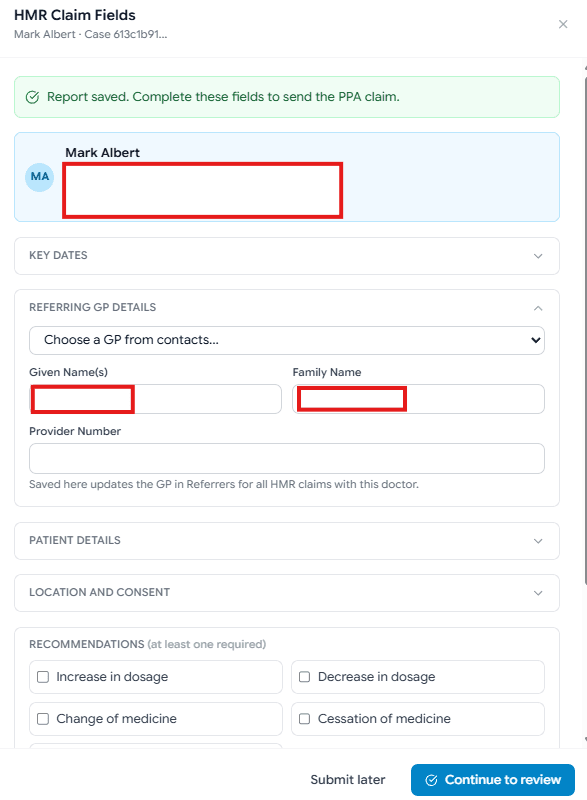
Submit an HMR PPA claim
Once PPA is set up, saving an HMR report can open the claim fields window so you can confirm service details and send the claim to PPA. You can also finish later from HMR → Claims.
Tip
You can skip any pop-up and complete PPA claiming later from HMR Claims.