Core Tools
PharmCal
PharmCal is your pharmacist calendar for follow-ups, reviews and reminders. Tasks can be linked to a patient and to the report that prompted them, so you always know what needs doing next.
Many tasks are created automatically when you save a report in Scribe. You can also add tasks directly in PharmCal, switch between day, week and month views, and send patients an email reminder the day before a follow-up.
The flow at a glance
How PharmCal is laid out
Open PharmCal from the main navigation. Across the top you will see:
- Date navigation – move between days, weeks or months, or jump to Today.
- My Tasks / Team – see your own tasks or, on eligible plans, tasks across your organisation.
- + Add Task – open the task form for any date.
- Day, Week, Month, Agenda – switch how the calendar is displayed.
Use the Search tasks bar and Filters button to find tasks by keyword, urgency, status or patient. Linked tasks also appear on the patient's Tasks tab in Patient Files.
Step 1
Choose a calendar view
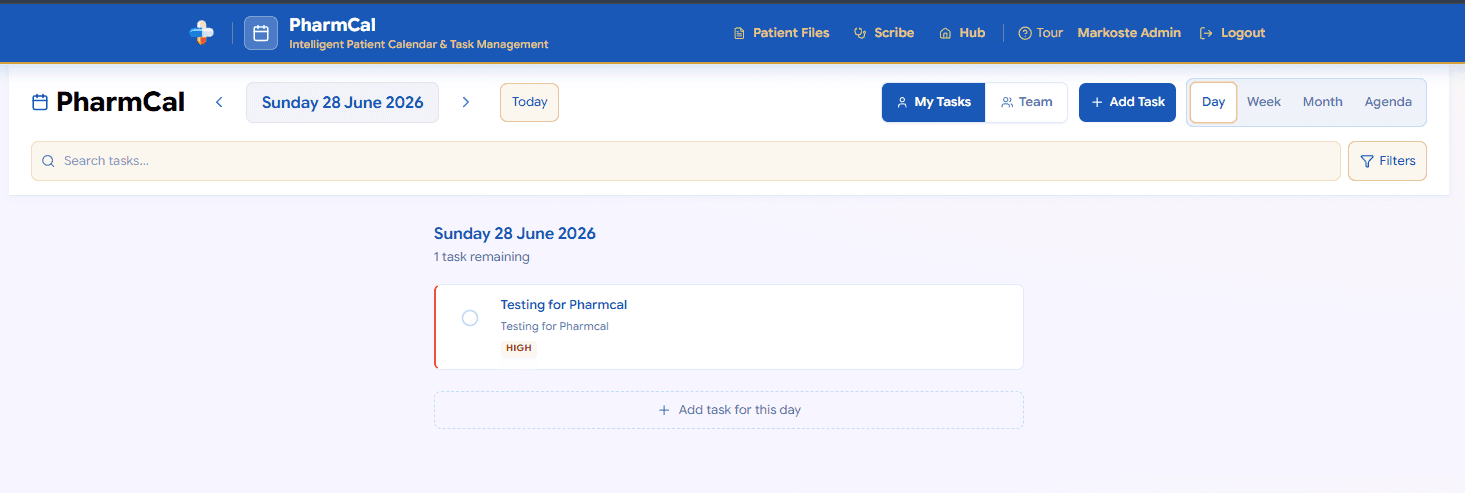
Day view — plan today in detail
Select Day to focus on a single date. Tasks show their title, description and priority badge. Tick the circle to mark a task complete, or use + Add task for this day at the bottom of the list.
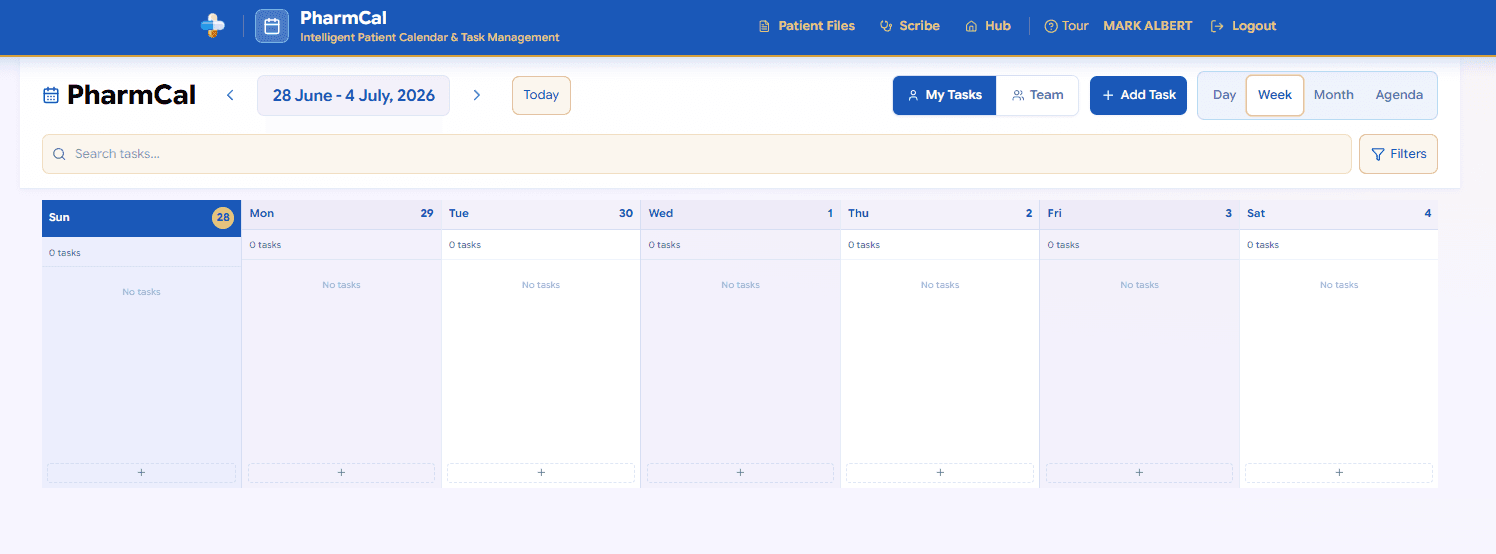
Week view — see the week ahead
Select Week to see seven columns, one per day. Each column shows how many tasks are scheduled and lets you add a task directly to that day.
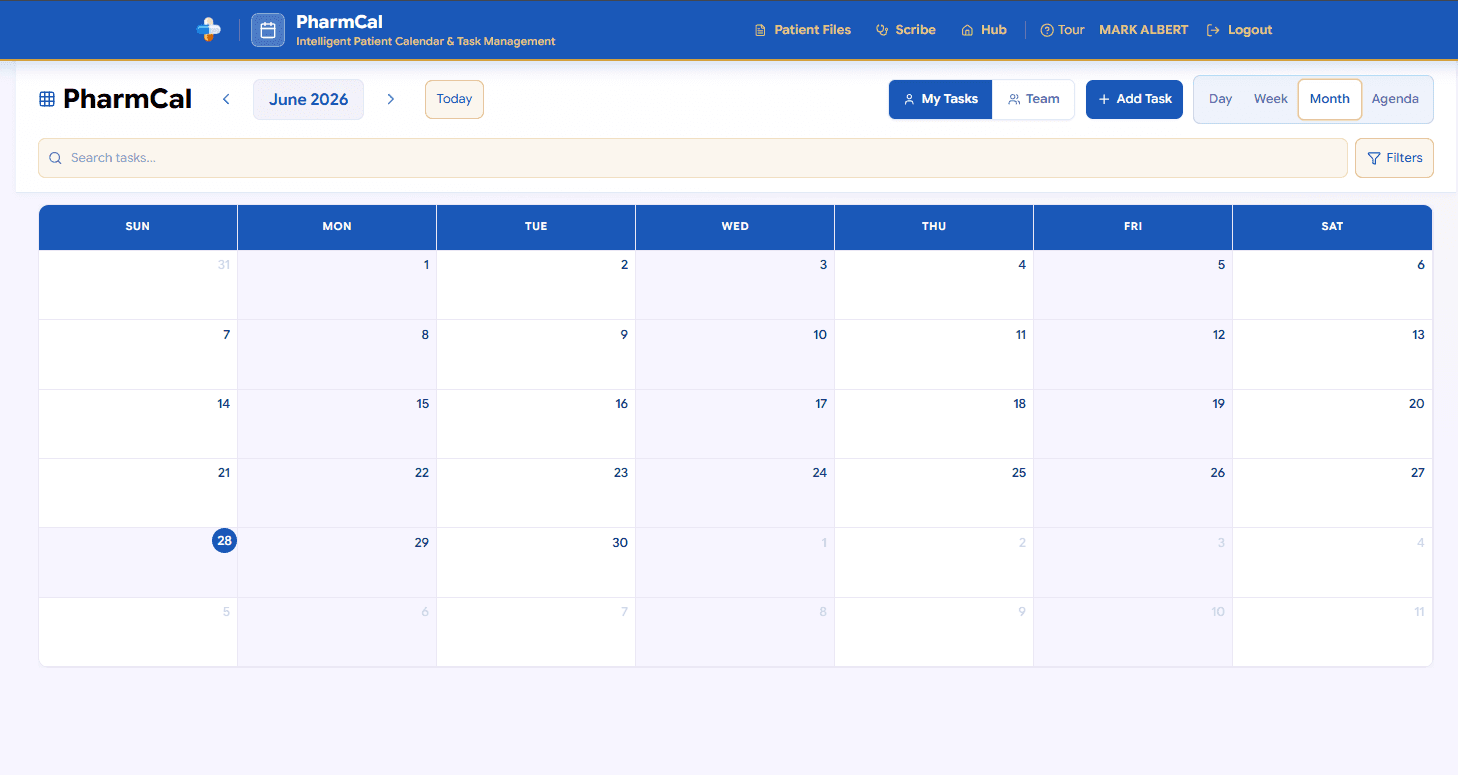
Month view — the big picture
Select Month for a full calendar grid. Click a date to drill down into that week or day. Urgent days are highlighted so you can plan ahead.
Tip
Use Agenda for a simple chronological list of upcoming tasks when you do not need the calendar grid.Step 2
Create a task
Add a follow-up to the calendar
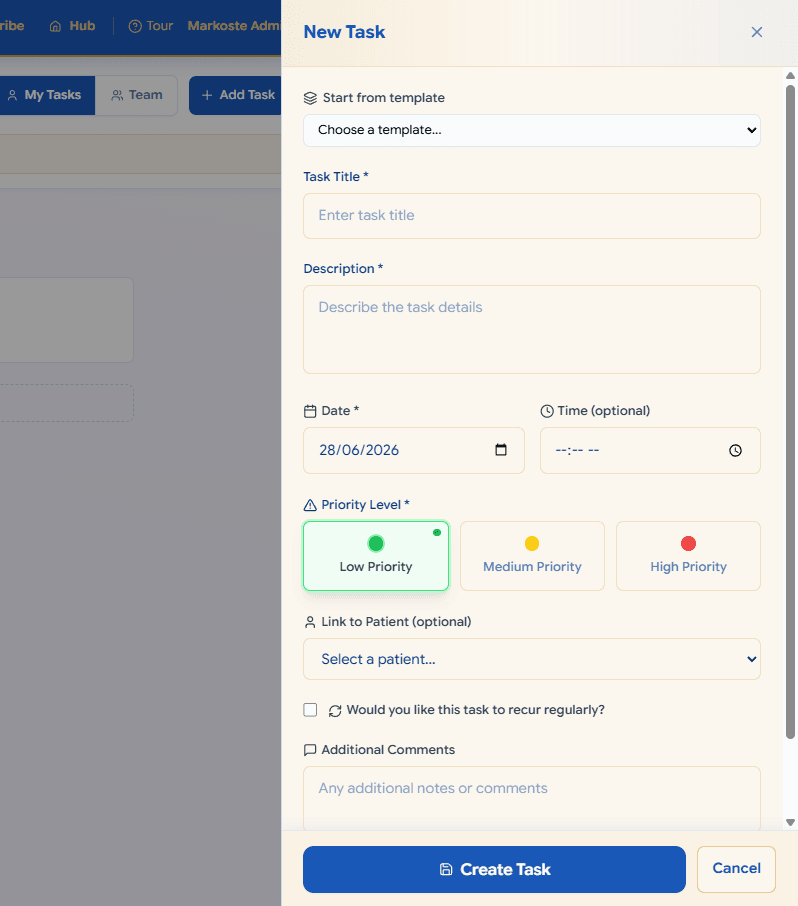
Click + Add Task, or click a date on the calendar, to open the New Task panel. Enter a title and description, set the date and optional time, choose a priority level, and link the task to a patient if needed.
When you save a report in Scribe, Markoste can offer to create a PharmCal task pre-filled with the patient and report details.
Step 3
Start from a template
Use a ready-made pharmacy task
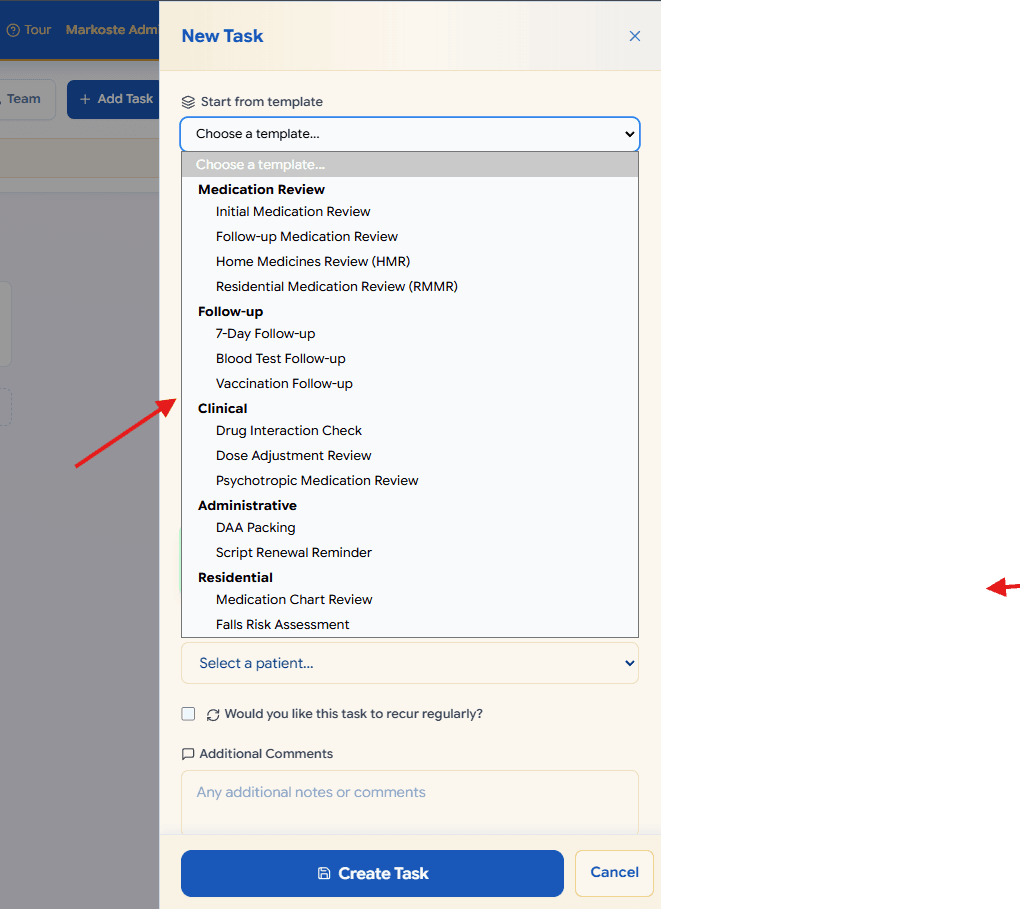
At the top of the task form, open Start from template. Templates are grouped by category:
- Medication Review – initial review, follow-up, HMR and RMMR.
- Follow-up – 7-day follow-up, blood test results, vaccination.
- Clinical – drug interaction check, dose adjustment, psychotropic review.
- Administrative – DAA packing, script renewal.
- Residential – medication chart review, falls risk assessment.
Pick a template and PharmCal fills in a sensible title, description and priority. Adjust anything before you save.
Step 4
Set the priority level
Choose low, medium or high priority
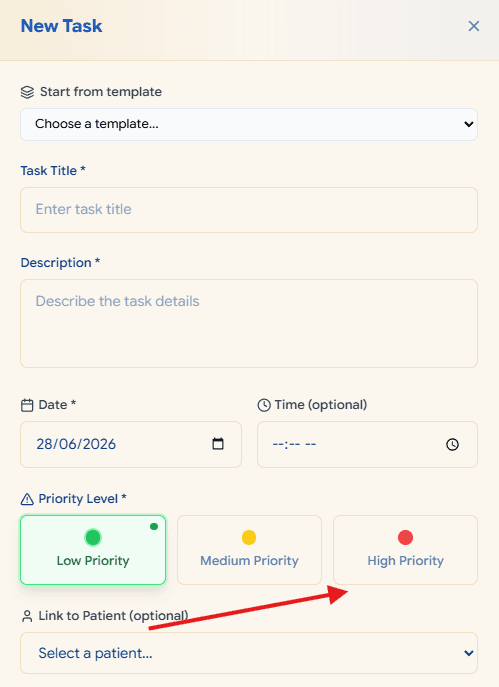
Every task needs a Priority Level:
- Low Priority (green) – routine follow-up.
- Medium Priority (yellow) – needs attention soon.
- High Priority (red) – do not miss.
Tasks sort by priority and time, so your most important work rises to the top of each day.
Step 5
Recurring tasks
Repeat a task on a schedule
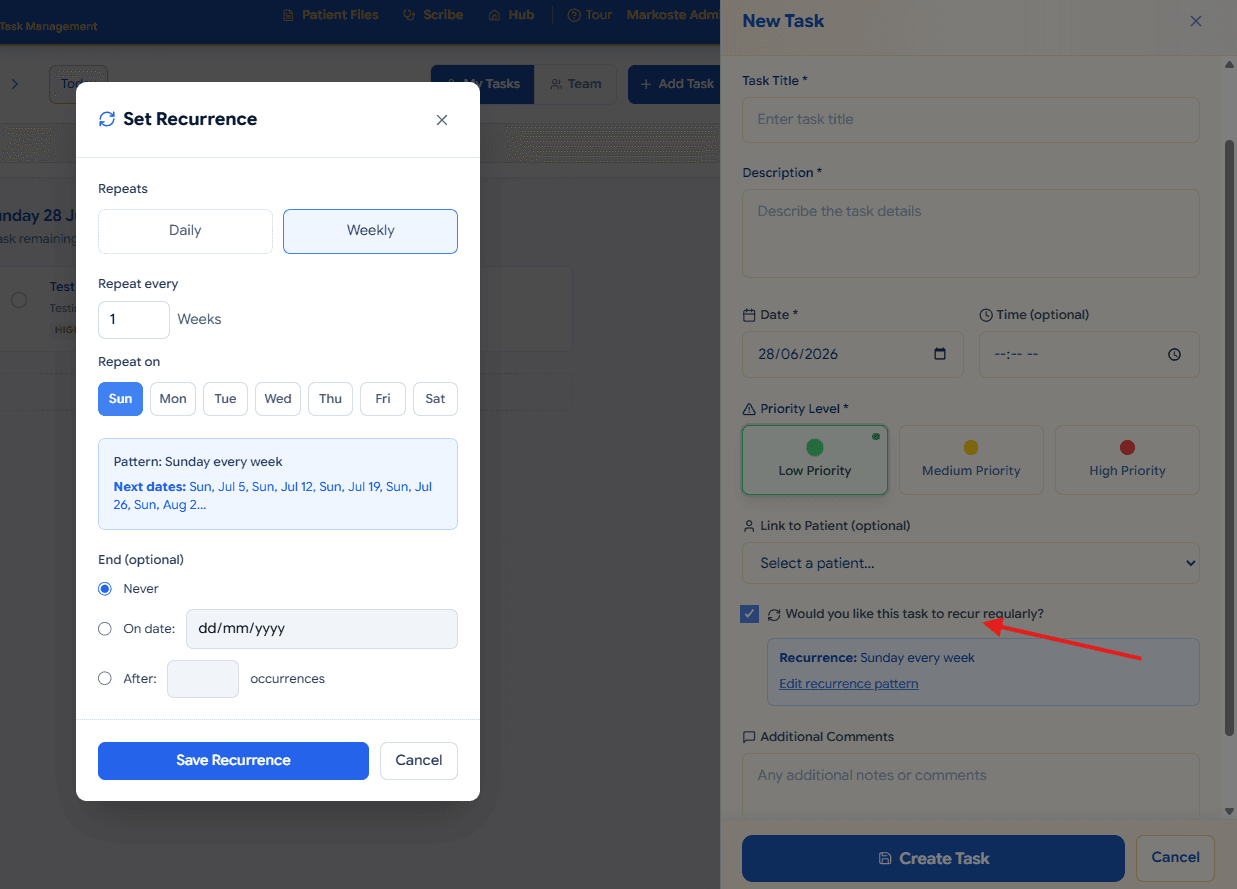
Tick Would you like this task to recur regularly? on the task form, then click Edit recurrence pattern.
Choose Daily or Weekly, set how often it repeats, pick the days of the week, and choose when the series ends – never, on a date, or after a number of occurrences. PharmCal creates the series for you.
Good to know
When you delete a repeating task, Markoste asks whether to remove just that one occurrence or the whole series.Step 6
Patient email reminders
Notify the patient before a follow-up
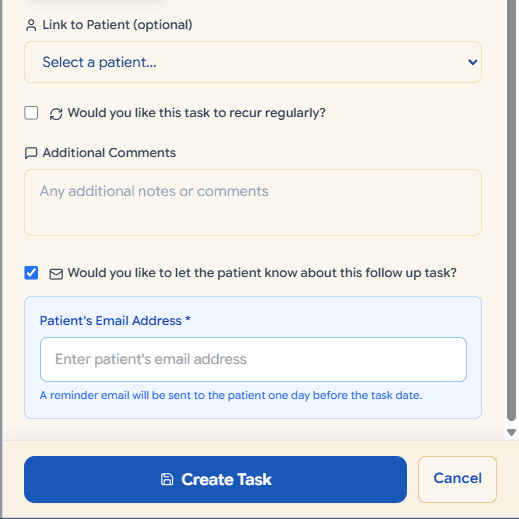
When a task is linked to a patient, tick Would you like to let the patient know about this follow up task? Enter the patient's email address and Markoste sends them a reminder email one day before the task date.
Step 7
Complete and reschedule
Mark done or push the date back
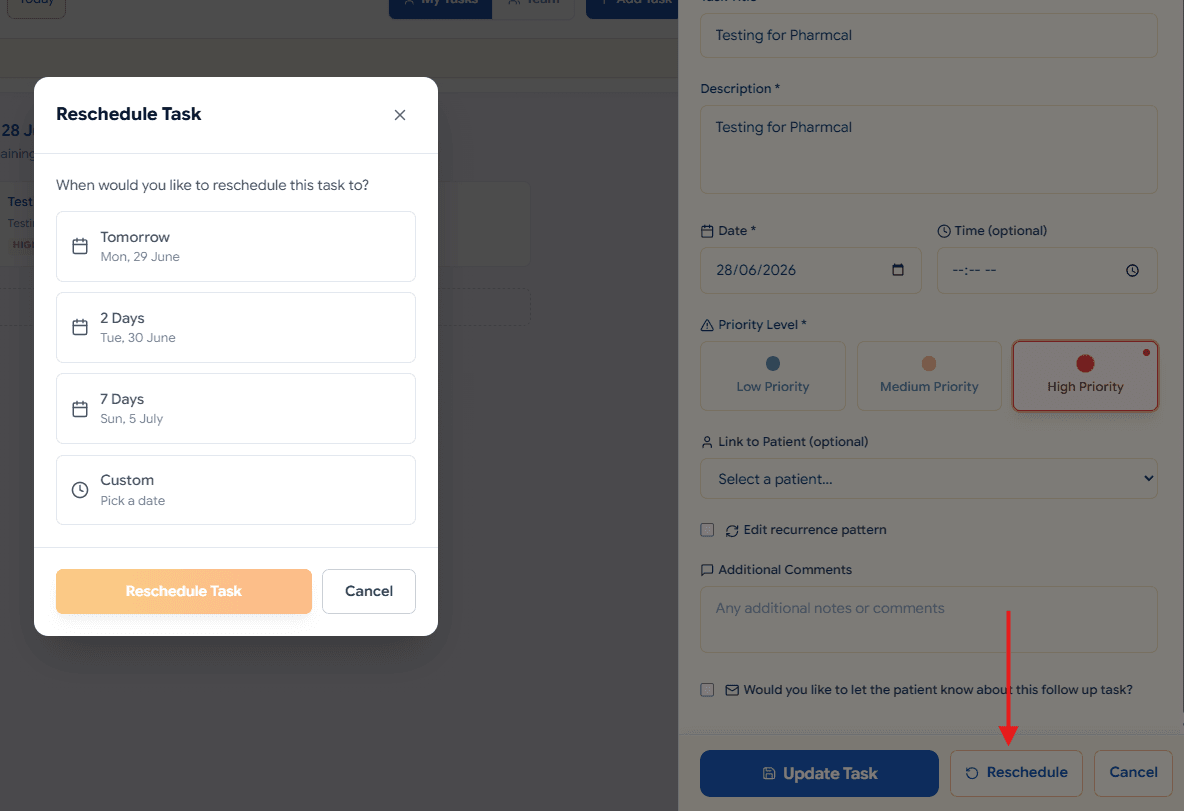
In the calendar, tick a task to mark it complete. To change the date, open the task and click Reschedule.
Choose a quick option – Tomorrow, 2 Days, 7 Days – or pick a Custom date. Click Update Task to save other changes to the task.